For most patients, your Google Business Profile is the first thing they see about you: your name on the map, your timings, your reviews and a button to call. A well-run Google Business Profile for doctors brings calls every day without any advertising. A neglected one sends patients to a closed clinic, an old number or the doctor down the road.
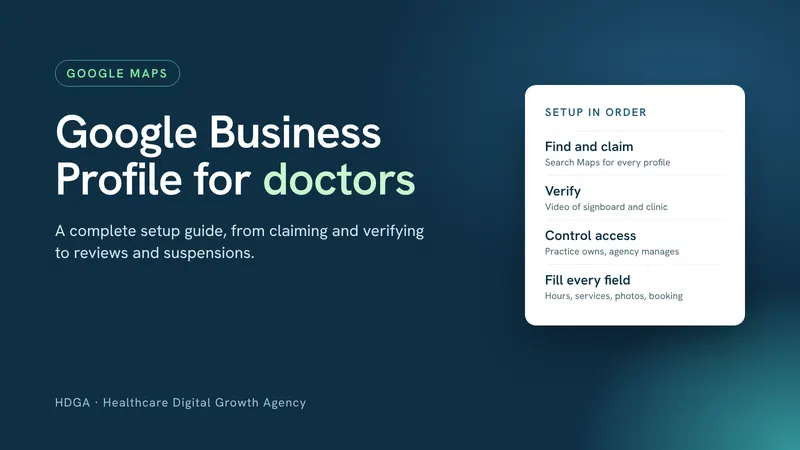
This is a step-by-step setup guide for doctors, clinics and hospitals in India: claiming or creating the profile, verifying it, controlling access, filling every field, handling reviews and avoiding suspension. For how Google decides who ranks in Maps, read our companion guide to local SEO for doctors.
Before you start
Decide the structure first, because it is hard to change later:
- Solo doctor: one profile combining practice and doctor, such as "Sunrise Child Clinic: Dr Anil Mehta".
- Clinic with several doctors: one profile for the clinic, and separate profiles for doctors whom patients ask for by name.
- Hospital: one profile for the hospital, and separate profiles for public-facing departments with their own entrance or phone, such as emergency or diagnostics.
- Chain: one profile per branch, at its real address.
Keep these ready: your Clinical Establishments registration certificate, a recent utility bill for the premises, photos of your signboard, and a business phone number that someone answers.
Step 1: Find any existing profile
Search Google Maps for your clinic name, address, phone number and each doctor's name. Profiles are often created automatically, by former staff or by an old agency.
- If a profile exists and nobody you know controls it, use the request access option on the profile. The current owner is asked to respond, and if they do not, Google may let you claim it.
- If there are duplicates, keep the one with the most reviews and ask Google to remove or merge the others.
- If none exists, create one.
Step 2: Create the profile
- Sign in with a Google account the practice owns, not a doctor's personal account and never an agency's.
- Go to Google Business Profile and add your business.
- Name: exactly as on your signboard and registration. No keywords, areas or claims.
- Primary category: the most specific one that fits, such as Pediatrician, Cardiologist, Dentist, Medical clinic or Hospital.
- Address: your full address, with the map pin dragged to your entrance.
- Phone and website: a number that is answered during working hours, and your website's page for this location.
Step 3: Verify it
Google decides which verification methods you are offered. In 2026 the most common is a video recording:
- record one continuous video of at least 30 seconds; one to two minutes works best
- show the location: the street, your signboard and neighbouring shops
- show the clinic itself: reception, consultation room and equipment
- show that you manage it: unlock the door, open a staff-only area or show registration documents
Other methods include a phone or SMS code, email, a live video call with Google support and, rarely now, a postcard. Google says reviews take up to five business days, though they can take longer. Keep the profile's phone number monitored: Google said in March 2026 that it may contact businesses on that number by call, text or WhatsApp.
Step 4: Control who has access
Each profile has exactly one primary owner, who alone can transfer ownership. Owners can add and remove people. Managers can edit almost everything but cannot remove the profile or manage users.
- Keep the primary owner as the practice's own account, held by the doctor or administrator.
- Give your agency, front desk and marketing staff manager access only.
- Review the list of people with access every few months, and remove anyone who has left.
- Never remove the last owner. New owners cannot remove other users or transfer ownership for the first seven days.
Step 5: Fill in every field
- Hours: OPD timings exactly, including lunch breaks if you close. Add special hours before every holiday. Mark 24 hours only for departments that are truly open round the clock.
- Secondary categories: other services you genuinely offer.
- Services: list each consultation, test and procedure with a factual description and a price or range where you can.
- Description: what the practice offers and who it serves, in plain words. No "best", "No. 1", guarantees or offers.
- Attributes: wheelchair-accessible entrance, parking, appointment required, languages spoken and any others offered for your category.
- Booking: a link to your appointment page or a WhatsApp number.
- Photos: logo, a cover photo, the outside of the building and entrance so patients can find it, reception, consultation rooms, equipment and the team. Never identifiable patients.
Step 6: Set up doctors' profiles
Doctors who see patients regularly at the practice can have their own profiles, linked to their page on your website. Name each with the doctor's name and primary category, such as Orthopedic surgeon. When a doctor leaves, update or remove the profile promptly. Ask yourself early who will control each doctor's profile, the practice or the doctor, and agree it in writing.
Step 7: Reply to reviews within the rules
Reply to every review, briefly and politely. The NMC's 2026 guidelines and patient confidentiality mean you should never confirm that the reviewer was your patient or discuss their care.
For a positive review: "Thank you for taking the time to share your feedback. We are glad the information was helpful. — The team at [Clinic name]"
For a negative review: "We are sorry to read this. We take every concern seriously and would like to understand more. Please contact our patient relations team on [number] or at [email]. — The team at [Clinic name]"
Do not offer anything for reviews, ask only happy patients, or repost reviews on social media. See our guide to the NMC testimonial rules.
Step 8: Post updates, carefully
Posts are useful for new OPD timings, holiday hours, a new service or health information. Keep them factual, and include the doctor's name, qualifications and registration number when a post is from or about a doctor, as the NMC guidelines require of electronic posts. Avoid offers, discounts and "limited slots" messages.
Step 9: Keep it accurate every month
- Check that Google has not accepted edits suggested by the public to your hours, phone or category.
- Update hours before holidays.
- Add a few new photos.
- Reply to new reviews.
- Check the performance report for calls, direction requests, website clicks and bookings.
Google retired the questions-and-answers section from profiles in late 2025. Patients' questions now go to AI answers built from your profile, reviews and website, so keep your website's FAQs clear and current.
Why profiles get suspended, and what to do
Common causes for practices:
- keywords, areas or claims added to the business name
- an address that is a virtual office, a home or a room the practice does not control
- duplicate profiles for the same clinic or doctor
- a sudden change of name, address and category at once
- signs of review manipulation
If your profile is suspended, fix the cause first, then submit a reinstatement request with evidence: your registration certificate, a utility bill in the practice's name, photos of your signboard and entrance, and your website. A careless appeal can make later appeals harder, so get it right the first time.
Common questions
Is a Google Business Profile free for doctors?
Yes. Creating and managing a profile costs nothing. Be wary of anyone selling "Google verification" or guaranteed rankings.
Can I list my home clinic?
Yes, if you see patients there during stated hours, with a signboard. Use your real address; Google may ask for proof.
Should my agency own our profile?
No. The practice should be the primary owner. Give the agency manager access, which you can remove at any time.
Can I show my fees on the profile?
Yes. Listing services with factual prices helps patients, and the NMC guidelines allow factual disclosure of fees.
What to do next
Search Maps today for your clinic and every doctor's name, and make sure your practice owns every profile you find. Then work through steps 5 to 9. If you would like it managed for you, see our Google Business Profile management service, or book a call.
Sources
- BrightLocal: how to verify your Google Business Profile
- Sterling Sky: adding and removing owners and managers
- Sterling Sky: practitioner listings
- Sterling Sky: Google Business Profile suspensions (updated March 2026)
- Whitespark: with Google Q&A gone, you need an Ask Maps strategy (January 2026)
- Google Business Profile Help: owners and managers